

Best VS Code Extensions Tools 2026
Find the best VS Code extensions for AI coding assistance, productivity, debugging, language support, Git integration, and workflow automation. With over 50,000 extensions in the marketplace, this curated directory surfaces the most useful, highly-rated options across every language and stack. Discover extensions that meaningfully reduce context switching, speed up development, and keep your VS Code setup lean and fast.
.svg)


Talk to your Copilot. Hands-free voice for GitHub Copilot CLI.
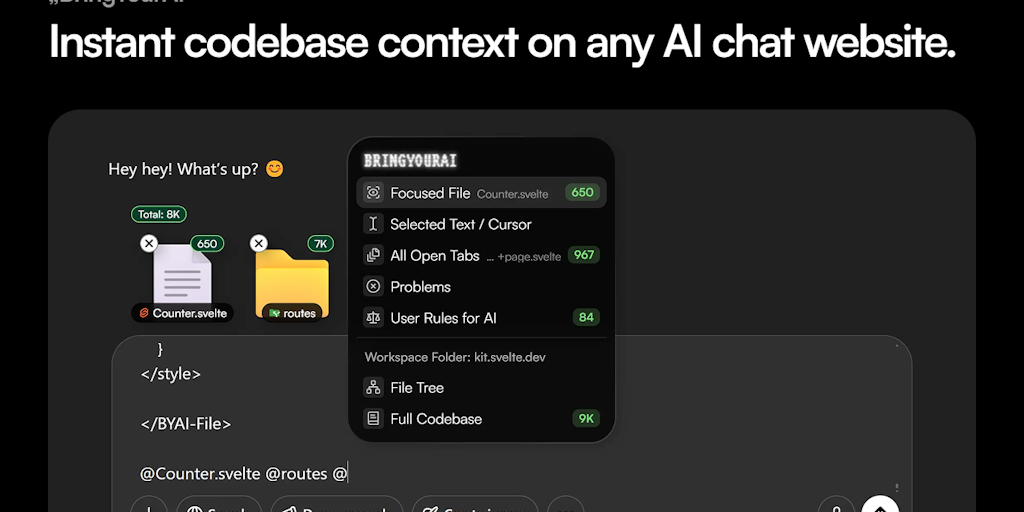
Connect your codebase to any AI chat with one @ symbol

Automated backups & disaster recovery for GitHub, GitLab, Azure DevOps & Linear

See how your coding hours stack up against your friends in VS Code

Create custom VS Code themes with an intuitive color picker and palette system
VS Code ships intentionally bare. Its power is that you bolt on exactly what your work needs and nothing else, through a marketplace of tens of thousands of extensions. That freedom is also the trap, since it is easy to install a dozen tools that each run in the background and turn a fast editor into a sluggish one. A good setup is curated, not maximal.
The extensions almost everyone adds
A few categories earn their place on most machines. AI extensions bring code completion and chat into the editor, and Git extensions like GitLens make version history readable without leaving the file you are in. Between them they cover the two things developers do all day: write code and reason about how it changed.
Comfort and flow
The rest is about reducing friction. Productivity extensions automate formatting, navigation, and the small repeated actions that add up over a day, while themes and UI extensions tune the editor for long sessions, which matters more for eye strain than people admit.
Fewer, chosen deliberately
Every extension has a cost in startup time and memory, and some run on every keystroke. The fix is to install only what you actively use, disable the rest per workspace, and use the built-in bisect tool when the editor slows down. A lean set of extensions you understand beats a crowded one you forgot you installed. For AI assistance specifically, the AI code assistants for VS Code go deeper, and the wider code editors category compares the editors themselves.